Can You Change the Shipping Method on Shopify Orders? A Complete Merchant Guide
A customer places an order. A few minutes later, they sent a message saying,
“I chose the wrong shipping option. Can you change it?”
If you run a Shopify store, this probably sounds familiar. Many customers place orders quickly, especially on mobile. Sometimes they miss the shipping option or realize later that they needed faster delivery. When this happens, store owners usually open the order in Shopify to fix it, but don’t see an easy way to change the shipping method.
Shopify locks important order details once checkout is finished. This helps keep payments, taxes, and fulfillment correct. Because of this, shipping methods do not work the same way after an order is placed as they do during checkout.
In this guide, you’ll learn how shipping methods work on Shopify orders, why they can’t be changed directly after checkout, and what options merchants have when customers ask for shipping changes.
Can You Change the Shipping Method on Shopify Orders?
After an order is placed, Shopify does not allow merchants to directly change the shipping method on that order. This means you cannot switch an order from standard shipping to express shipping, or the other way around, once checkout is finished.
This is how Shopify is designed to work. During checkout, Shopify confirms the shipping method, payment, and taxes. Once the order is created, these details are locked to keep the order accurate and ready for fulfillment. This helps avoid pricing errors, tax issues, and confusion later in the order process.
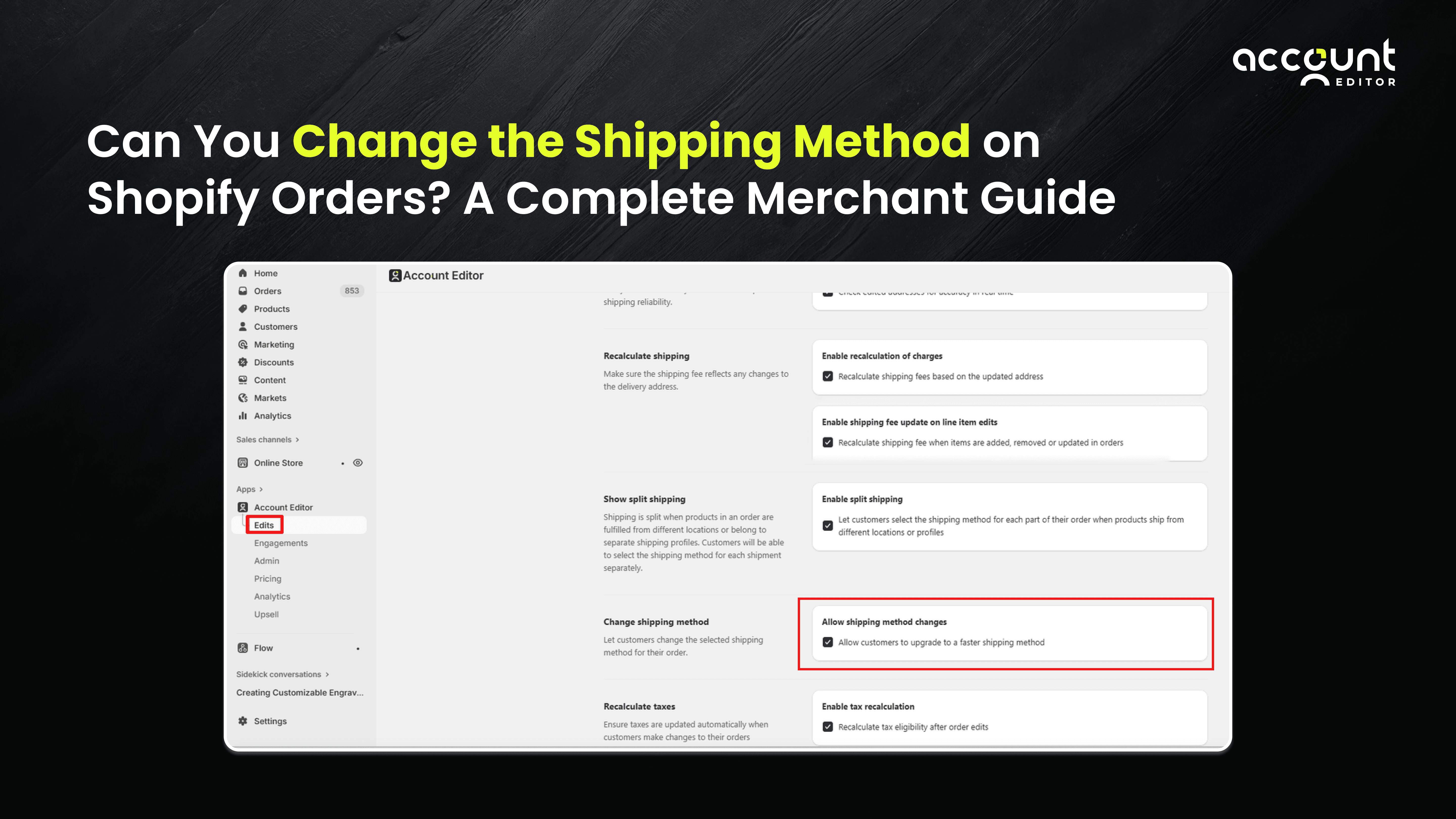
Even though the shipping method can’t be changed after checkout, merchants still have safe ways to handle shipping requests depending on the order stage. Some also use tools like Account Editor, which supports merchant-approved post-purchase updates and includes smart address validation to help catch incorrect or incomplete addresses before fulfillment begins.
The Simple Answer You Need to Know
You can’t directly change the shipping method on an existing Shopify order. However, you can still handle shipping issues in practical ways, such as:
Adjusting the shipping cost: You can add a custom shipping charge if the order hasn't been fulfilled.
Recreating the order: Duplicate the original order, select the correct shipping method, and cancel the old one.
Resolving before fulfillment: If the order has not been fulfilled yet, customers can contact support to request changes. In many cases, merchants can make limited edits from the Shopify admin, depending on the order status and store settings.
To reduce manual support, some merchants use an order editing app like Account Editor. This allows customers to fix small mistakes themselves, such as address corrections or item adjustments, within a controlled time window, while the merchant remains in control and fulfillment has not yet started.
Why Shopify Locks Shipping Methods After Checkout
When a customer finishes checkout on Shopify, a lot of important things happen at the same time. Shopify confirms the shipping option, calculates taxes, and makes sure the payment goes through correctly. All of this information is saved together as one complete order.
Because these details are connected, Shopify locks them once the order is created. This helps keep everything in sync. It prevents issues like wrong charges, tax errors, or problems during fulfillment. In simple terms, locking the shipping method helps make sure the order stays correct from payment all the way to delivery.
This approach makes it easier for merchants to manage orders, especially as order volume grows.
Checkout vs Post-Checkout on Shopify
Before checkout, customers can freely change things. Shopify updates shipping options in real time when an address changes or a different delivery speed is selected. This is the flexible part of the buying process.
After checkout, the order moves into a different stage. At this point, the focus shifts from choice to consistency. Shopify keeps key details stable so payments, taxes, and fulfillment stay aligned. That’s why shipping methods don’t work the same way after checkout as they do before payment is completed.
What Happens When a Customer Chooses the Wrong Shipping Method?
Choosing the wrong shipping method is very common. It usually happens when a customer is in a hurry, shopping on their phone, or placing an order for the first time. Sometimes they pick standard shipping when they actually need faster delivery. Other times, they choose express shipping by mistake and only notice after paying.
When this happens, the customer usually contacts support. From their point of view, it feels like a small change. From the merchant’s side, it can quickly turn into extra work. Someone has to check the order, explain what’s possible, adjust costs, or decide whether the order needs to be canceled and recreated.
If these requests are handled slowly, customers may worry that their order will be delayed. In some cases, they cancel the order altogether and place a new one or leave your store. This is why shipping-related issues often lead to cancellations or repeated support messages, even though the original problem was small.
Why Shipping Mistakes Often Turn Into Support Tickets
On Shopify, customers cannot change shipping details after checkout on their own. Every shipping change request has to go through the merchant or support team. When many orders come in every day, even simple requests like “Can I upgrade shipping address?” can add up.
This is where many merchants look for ways to reduce manual work without changing how Shopify’s checkout works. Instead of reacting to each message one by one, they aim to fix the problem earlier and more smoothly.
Some merchants do this by offering a short post-purchase order editing window where customers can correct simple mistakes themselves. This is where tools like Account Editor fit naturally into the workflow. Account Editor works after checkout and lets merchants control what customers are allowed to update, and for how long. When used carefully, this can help customers fix shipping-related issues early, before fulfillment starts, and without needing to contact support.
The goal is not to change Shopify’s rules, but to work within them while making the experience easier for both customers and merchants.
Can Customers Change the Shipping Method Themselves on Shopify?
By default, customers cannot change the shipping method on their own after checkout on Shopify. Once an order is placed, shipping choices are locked, and any request to update them usually needs help from the merchant or the support team.
As a store grows, these requests become more common. Many merchants notice that a large share of support messages come from customers who made small mistakes right after purchase, such as choosing the wrong shipping speed or realizing they need faster delivery. While these are simple issues, they still require manual work when there is no self-serve option.
To reduce this back-and-forth, some merchants allow limited post-purchase editing. This gives customers a short, merchant-defined window after checkout to fix certain details before the order moves to fulfillment. Tools like Account Editor support this approach by letting merchants control what customers can update and for how long. This helps resolve shipping-related issues early, reduces support load, and keeps orders moving smoothly without changing Shopify’s checkout flow.
Where Post-Purchase Order Editing Fits In
This is where solutions like Account Editor fit naturally. Account Editor works after checkout and allows merchants to decide what customers can edit, such as shipping-related details, without disrupting Shopify’s order structure. By enabling safe self-service edits, merchants can reduce cancellations, lower support ticket volume, and keep fulfillment running smoothly.
Best Practices to Reduce Shipping-Related Issues on Shopify
Clear communication at checkout helps customers choose the right shipping option the first time. Simple labels, visible delivery timelines, and easy-to-understand shipping choices reduce confusion.
Many merchants set a short post-purchase order editing timeframe through third-party apps like Account Editor. This gives customers time to notice and fix mistakes before fulfillment begins. Even a small window can significantly reduce shipping-related support requests.
Automating low-risk order changes, such as address corrections or shipping cost adjustments, further improves operational efficiency and reduces manual workload.
Final Thoughts
Shipping method changes are a common part of running a Shopify store. While Shopify locks shipping methods after checkout to keep orders accurate, merchants still have practical ways to handle customer requests depending on timing and order status.
By understanding how Shopify’s order flow works, merchants can resolve shipping issues early, reduce support requests, and avoid unnecessary cancellations. Simple steps like clear checkout communication and early post-purchase corrections make a big difference.
For growing stores, controlled post-purchase editing can help manage these situations more smoothly. Tools like Account Editor support this by allowing limited, merchant-approved changes after checkout, without disrupting Shopify’s checkout or fulfillment process.
The key is to work with Shopify’s system, not around it, to create a better experience for both customers and teams.