Can I edit an order after it's been placed in Shopify?
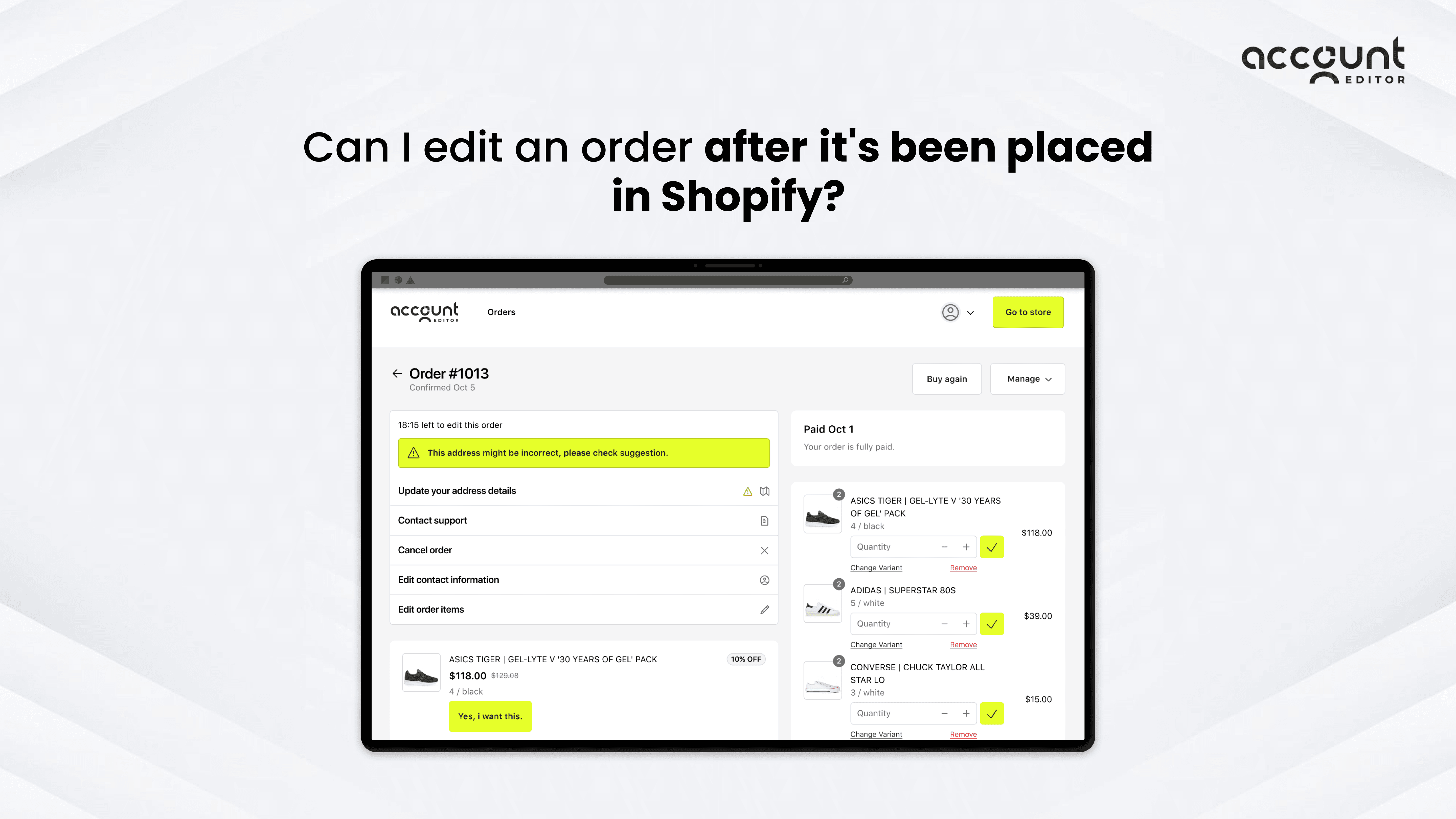
If you're reading this, you probably just placed an order and want to change something; your shipping address, the size or color of a product, the quantity, or maybe you want to remove or add an item. Naturally, the question is: "How do I edit my order on Shopify?"
Here's the honest answer: While Shopify does allow you to make certain edits to an order, the platform comes with several limitations that can restrict what you can actually change. Because of these constraints, using a dedicated Shopify app that offers more flexible and comprehensive order-editing capabilities has become essential for modern eCommerce stores.
In this article, we break down what Shopify does (and doesn't) allow, what normally happens behind the scenes, and how some brands give customers the ability to fix mistakes on their own using tools like Account Editor.
Editing order items in Shopify
When you place an order on a Shopify store, you might expect to go back and fix a mistake like swap a size, remove an item, or correct your shipping address. But Shopify's system doesn't actually work that way.
What Shopify allows today:
Shopify gives the ability to edit certain parts of an order after checkout. According to Shopify's official documentation:
• Merchants can add or remove items, update quantities, or apply discounts (Shopify)
• Merchants can edit a shipping address, but only if the order hasn't been fulfilled (Shopify)
In short: Shopify supports basic order updates but only when handled manually by the store owner. As a customer, you usually need to contact support and wait for help.
Where native editing falls short in practice: Shopify's native editor only works on unfulfilled items, requires the merchant to handle every change from the admin, and offers no customer-facing self-service portal. A simple variant swap, for example, isn't really "editing." The merchant has to remove the original item and add the correct variant manually, then reconcile totals. For a full side-by-side breakdown of where native editing breaks down as stores scale, see our deep dive on Shopify Order Editing App vs Native Editing.
The Solution
Account Editor helps make the process smoother with self-service. Instead of contacting support, customers can fix common mistakes themselves right after buying:
• Change product size, color, or variant
• Add or remove items
• Update quantities
• Change line item properties
• Fix email or phone number errors
• Change the shipping address with built-in Google validation
• Upgrade the shipping method
The app provides a simple editing widget on the store's Thank You / Order Status page, giving shoppers a clear, safe way to update their order before it ships, with no tickets and no delays.
Can you edit an order on Shopify?
Short answer: Yes, but with some limitations.
Editing Your Order in the Shopify Admin
In your Shopify admin you can go to Orders → select an order → Edit. You'll be able to add or remove line items, adjust quantities, add shipping fees or discounts. (Shopify)
So if a customer suddenly wants one extra item, or wants to remove a product, you can accommodate that. Once the changes are made, Shopify shows whether a refund is owed to the customer, or if they owe more money. (Shopify Help Center)
Are these the only edits available in Shopify?
Yes these are the official order-editing actions Shopify currently supports. Merchants can make a few specific adjustments from the admin:
• Add items to an order
• Remove items from an order
• Change item quantities
• Add or remove discounts
• Update a shipping address, as long as fulfillment hasn't started
• Adjust shipping costs when needed
Source: Shopify Help Center: Editing orders
Source: Shopify Help Center: Editing shipping address
These actions make up the full list of native editing capabilities inside Shopify. Outside of these options, Shopify does not provide any additional edit types.
A note on shipping method changes: One edit Shopify deliberately doesn't allow post-checkout is swapping the shipping method itself, for example, moving an order from standard to express. Shopify locks the shipping method at checkout to keep payments, taxes, and fulfillment in sync. Workarounds include adjusting the shipping cost on an unfulfilled order or recreating the order, but neither is ideal at scale. For the full explanation of why this happens and how merchants handle shipping-change requests cleanly, read Can You Change the Shipping Method on Shopify Orders?.
This is why many stores extend their capabilities using tools like Account Editor, which allow customers to edit their own orders, swap variants, update contact information, and make changes that Shopify's native editor does not support.
How does order editing in Account Editor work?
Stores using Account Editor allow customers to make safe, real-time updates to their order directly from the Thank You page or Order Status page. The app manages all the behind-the-scenes complexity (order updates, refunds, payment differences, shipping recalculations) so the experience stays simple and stress-free for the shopper.
Put simply: You click "Edit," make your changes, confirm them, and the store sees the updated order instantly.
What Edits Can Customers Make with Customer Portal?
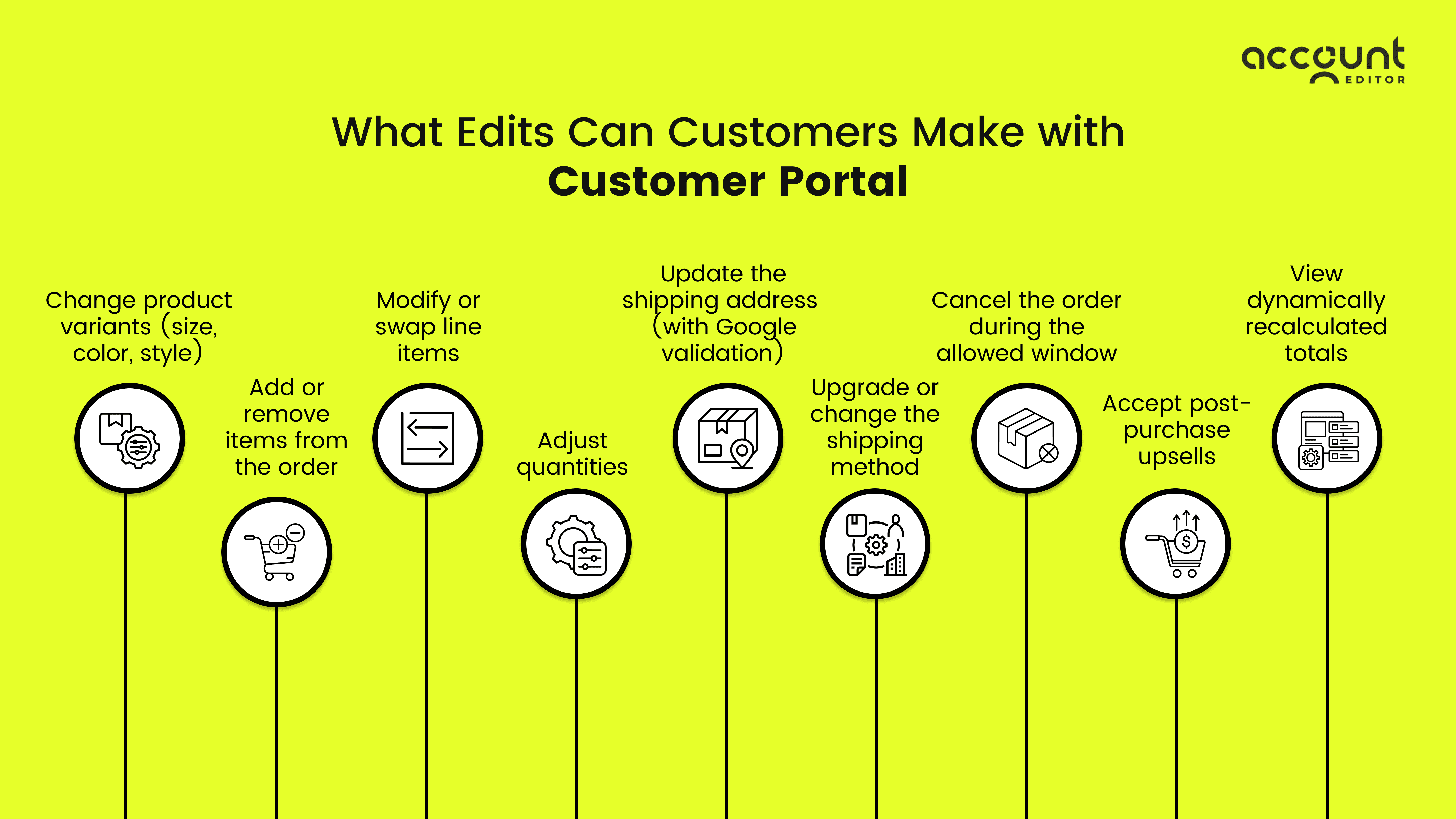
Account Editor gives customers a simple, self-serve way to fix common order mistakes without waiting for support. Depending on what the merchant allows, customers can.
• Change product variants (size, color, style) If the wrong size or color was selected at checkout, customers can instantly switch to the correct variant. The portal shows all available options, updates pricing automatically, and prevents changes if the variant is out of stock.
• Add or remove items from the order Forget an item? Want to remove something before it ships? Customers can add new products or remove unwanted items. The portal recalculates the total and shows any additional amount to be paid or refunded.
• Modify or swap line items Instead of cancelling the entire order, customers can replace one product with another. This is especially helpful for apparel, accessories, or customizable items where a simple swap avoids a full cancellation.
• Adjust quantities Customers can increase or decrease the quantity of any product in the order. The portal instantly updates the order subtotal, taxes, and shipping when required.
• Update the shipping address (with Google validation) If the wrong address was entered, customers can fix it on the spot. AE validates the address using Google Maps to prevent invalid or undeliverable addresses, reducing failed deliveries and returns.
• Upgrade or change the shipping method Customers can choose a different shipping speed, such as switching from standard to express, when the store enables this option. The system shows the updated shipping cost in real time.
• Cancel the order during the allowed window When enabled, customers can cancel the full order directly from the portal. The merchant controls the rules: time window, fees, exceptions, and refund method.
• Accept post-purchase upsells Customers may see personalized recommendations or discounted add-ons they can add with one click. AE recalculates the order and applies any configured discounts automatically.
• View dynamically recalculated totals As customers make edits, the portal updates prices, taxes, shipping fees, and any differences owed or refundable. This keeps the entire process transparent and reduces billing confusion.
The four pillars behind a well-run post-purchase editor: The capabilities above map onto four operational pillars merchants should think about when configuring their setup: address edits and shipping adjustments, item edits (change/swap/add/remove), smart cancellations, and post-purchase upsells. Each pillar has its own rules, guardrails, and best-practice windows (POD: 2 to 6 hours, MTO: 24 hours, Subscriptions: until fulfilled, Apparel DTC: 2 to 24 hours). For the full setup playbook, including KPIs to track and rule-based targeting for each pillar, see The Complete Post-Purchase Order Editing Playbook.
Who can use Customer Portal?
Merchants install the app and configure the portal. Once a store installs Account Editor, the merchant decides:
• whether customers can edit their orders,
• which types of edits are allowed,
• how long the editing window remains open,
• and what rules or restrictions apply (e.g., product tags, order tags, fulfilment status).
Shoppers don't need to download anything or create a separate account, they simply access the portal through the store's Thank You page or Order Status page
The features customers see inside the portal depend on the plan the merchant has purchased. Higher-tier plans unlock additional capabilities such as more number of order edits, change variant, line item edits and more.
In short: Merchants configure the portal, and customers benefit from the editing features available on that store's chosen Account Editor plan.
How do refunds work for my order edits in Shopify?
Editing an order can affect the order total (increase or decrease) which means refunds or additional payment requests may be required.
With Shopify's native editor:
• If you remove items or reduce quantity, you'll need to issue a manual refund through Shopify's refund interface. (Shopify Help Center)
• If you add items, you'll need to capture payment for the additional value (Shopify may require manual intervention).
• If shipping fees or discounts change, you'll need to reconcile the difference manually.
With Account Editor:
When customers edit their order, Account Editor automatically detects whether the total has increased or decreased and applies the refund method you choose. Merchants can pick from three refund-handling options, depending on their workflow and customer experience goals.
• Refund to the Original Payment Method: This is the simplest option. Account Editor automatically sends the refund back to the customer's original payment method. It's a hands-off, automatic process that requires no manual review and keeps the experience consistent for customers who expect the money to return to their card.
• Store Credit: Instead of sending money back to the customer's bank or card, Account Editor can issue store credit equal to the refund amount. This is helpful for brands that prefer to keep revenue on the store and encourage repeat purchases. The credit is applied immediately, and the customer can use it on future orders without going through the traditional refund cycle.
• Trigger Shopify Flow: For stores that need more control or use custom workflows, refunds can be routed through Shopify Flow instead of being processed automatically. When this option is enabled, Account Editor triggers a Flow event that allows merchants to run their own logic. This option is ideal for businesses with complex financial processes or B2B operations.
What edits mean for your taxes, duties, and reporting: Every order edit is also a recalculation event. Changing a shipping address can flip an order from non-taxable to taxable, change VAT rates, or shift it between DDP and DDU for international duties. Swapping a variant can change the HS code and customs duty percentage. Even upgrading shipping can expand the taxable base in regions where shipping is taxable. If these recalculations aren't clean, you end up with mismatches between Shopify, QuickBooks or Xero, and your tax filings. For a detailed walkthrough of how edits flow through taxes, duties, and month-end reporting, see How Order Edits Impact Taxes, Duties, and Financial Reporting on Shopify.
Impact of self-serve editing on cancellations and support tickets

Implementing a self-serve order editing process via a customer portal (like Account Editor) can have measurable business benefits:
• Lower cancellation rates: When customers can fix mistakes (wrong size, wrong variant, wrong address) themselves, they're less likely to cancel the order entirely.
• Reduced support tickets: Instead of emailing or calling, customers can make edits themselves, freeing up your support team for more strategic tasks.
• Increased upsell revenue: Account Editor allows you to surface post-purchase upsell offers, encouraging customers to add items after checkout. Shopify App Store
• Better customer satisfaction and trust: Self-serve editing feels modern, flexible, and empowers customers. That post-purchase experience can build loyalty.
Some app developers report that merchants see significantly fewer returns and cancellations once they enable order editing in the customer portal. For example, according to reviews of Account Editor, many merchants say their support workload dropped while AOV (average order value) went up.
Why customers cancel in the first place, and why edits solve it: Cancellations rarely happen because a customer regrets the product. They happen because of a fixable mistake: the wrong shipping address, the wrong size or variant, shipping that felt too slow, or a forgotten item. Without a way to fix those mistakes, "cancel" becomes the only button left to press. Self-serve editing replaces that dead-end with a simple correction, so the edit preserves the sale instead of discarding it. For the full breakdown of cancellation reasons and how edit windows, smart cancellation rules, and cancellation-reason capture turn churn into retention, read Stop Shopify Order Cancellations with Self-Serve Editing.
The strategic difference between editing and cancelling: A cancellation voids the order, reverses payment, and forces the customer to start checkout again, and most never do. An edit preserves the original transaction and simply updates the detail that was wrong. The operational and financial consequences compound: cancellations drain support hours, disrupt fulfillment, and erase lifetime value; edits keep the revenue intact and often add to it through upsells. There are cases where cancellation still makes sense, like suspected fraud, fulfillment already in motion, or a customer who specifically wants a refund, and a well-designed editor supports both paths. For the full editing-vs-cancelling comparison with real merchant scenarios, read Order Editing vs. Order Cancellation: The Smarter Way to Handle Post-Purchase Changes.
Why order editing has become a 2026 standard, not a nice-to-have: Buyer expectations have caught up with the way modern commerce actually works. Shoppers expect the same post-purchase flexibility they get from the biggest marketplaces, including instant address fixes, variant swaps, and quantity changes, and if your store can't offer it, they go somewhere that does. Address correction alone prevents a huge chunk of RTO cost and failed-delivery fees, and flexible item editing turns what would have been a cancellation into a retained (and often upsold) order. For the full breakdown of the seven reasons order editing has become essential for Shopify stores, read 7 Reasons Order Editing Apps Are Becoming Essential for Shopify Stores in 2026.
Create the best order editing process for your business
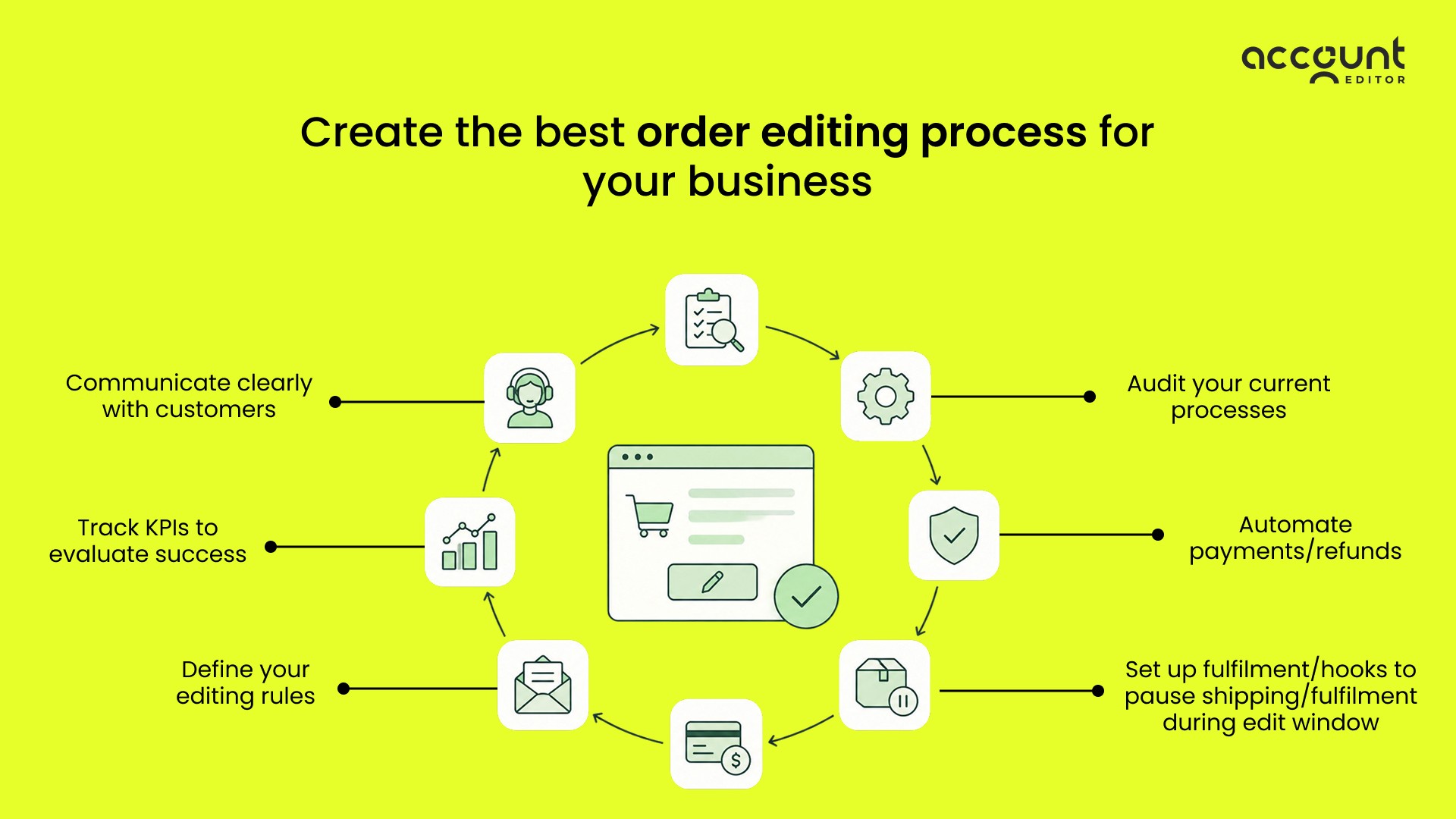
Now that we've covered what's possible, here's how you build a robust process for your business.
1. Audit your current processes
• How many customer requests for order changes do you get per week?
• What are the most common changes (address, quantity, product swaps)?
• How much time does your team spend handling them?
2. Decide whether native Shopify editing is enough
• If your volume of edits is low and your team can handle them via admin, Shopify's built-in tools may be sufficient.
• But if the support burden is high, or you want to offer self-serve editing, consider an app like Account Editor.
3. Define your editing rules
• How long after purchase can customers edit (e.g., 24 hours, 48 hours)?
• What edits are allowed eg. products may be swapped within same price tier; shipping address can change before fulfilment; items cannot be edited if tagged.
4. Set up fulfilment/hooks to pause shipping/fulfilment during edit window
• Use your built-in or custom logic (e.g., hold order status via Shopify Flow, or set fulfilment status to "on hold") to avoid 3PL kicking off shipping before edits are final.
5. Automate payments/refunds
• Ensure you handle increases/decreases in order value with minimal manual work. Use your order editing system to calculate and trigger refunds or payment requests.
6. Communicate clearly with customers
• On your "Thank You" page or email, show a link/button: "Need to edit your order? Click here to change your size, address or items."
• Provide clear cutoff time, the types of edits allowed, and how it works (via Customer Portal).
• This transparency reduces surprise cancellations and builds trust.
7. Track KPIs to evaluate success
• Monitor the number of orders edited, number of cancellations, number of support tickets related to order edits, average order value after edits (vs before).
• Use this data to optimize your rules (e.g., shorten edit window if too many late changes causing issues, cut off windows, or communication flows.).
Practical editing habits that keep the process fast: A few small habits make the difference between an editing workflow that saves time and one that creates new problems. Edit variants in place rather than deleting and re-adding line items, because that keeps reporting and Shopify order status clean. Always lock edits once fulfillment starts to prevent label and tracking mismatches. Recalculate tax and shipping any time pricing or quantity changes. And keep a clear audit trail on every edit so support can step in without losing context. For the full set of speed tips and common pitfalls to avoid, see How to Edit Orders in Shopify Faster: Practical Tips for Merchants and Support Teams.
Conclusion
Editing an order after checkout isn't something Shopify supports natively for customers, which is why so many shoppers end up contacting support or cancelling the order entirely, when they need to fix a simple mistake.
With the right tools, though, this doesn't have to happen. By enabling a self-serve editing experience through solutions like Account Editor, stores give customers the ability to correct their order, update their address, swap variants, or cancel within a safe window without waiting for help.
The result is a smoother post-purchase experience, fewer support tickets, and far fewer cancelled orders. Whether you're a shopper trying to understand how order editing works or a brand looking to improve your workflow, the key takeaway is simple: a flexible order-editing process leads to happier customers and enhanced revenue.
Give customers the power to fix their orders, without support. Try Account Editor today.